Your Children’s Mercy MyChart Next Steps
Thank you for enrolling in Children’s Mercy MyChart! Here’s how to get started and stay connected. Questions? Call us at (816) 234-3000 or talk with us in person at your next Children’s Mercy visit.
Here’s how to link your family's MyChart accounts:
If you are the caregiver of a Children’s Mercy patient:
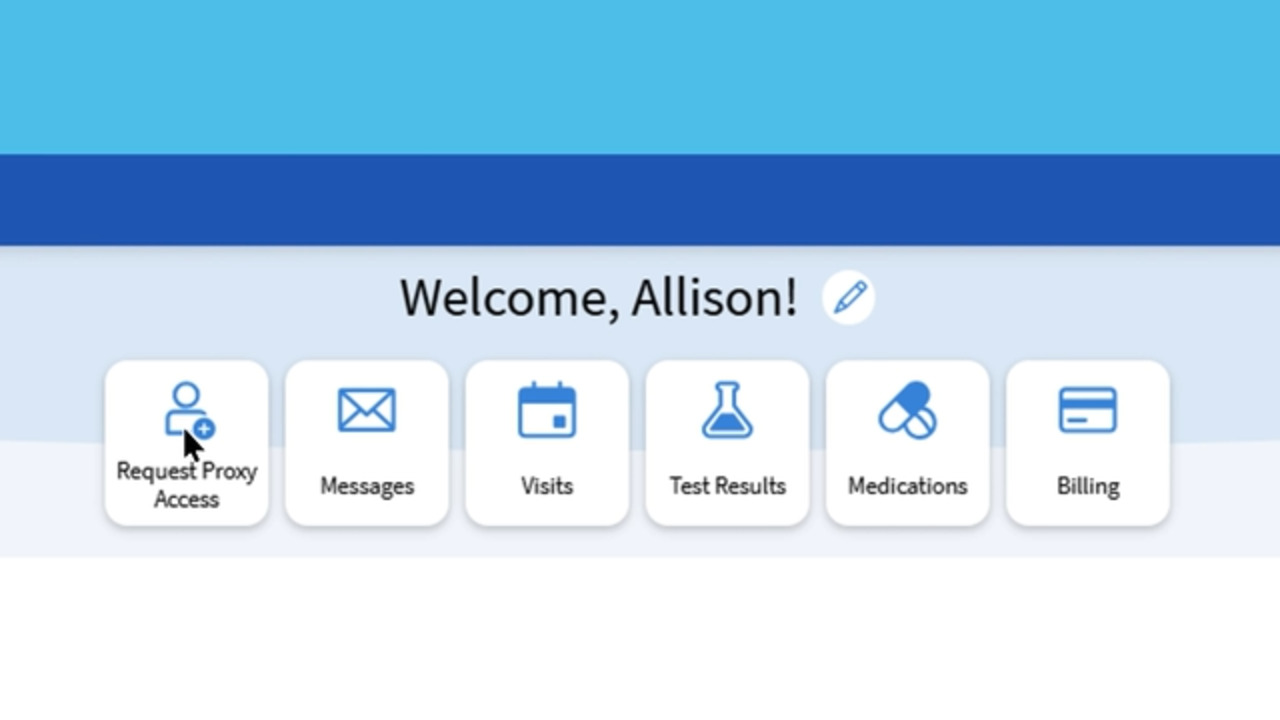
- Select “Request Proxy Access” from the top shortcut buttons or from the left menu.
- Complete the Request Proxy Access for MyChart form, upload a photo ID and provide your signature. If your child is 12 or older, you can choose whether to give them permission to have their own account once they turn 13.
- Children’s Mercy will verify your relationship to the patient. We will do this as quickly as we can. Thank you for your patience — verification keeps your child’s data safe!
- We will send you a notification when you’ve been verified. You’ll also see a notification when you log in to your MyChart account.
- Accept the proxy access. From your MyChart homepage, tap “Review access.” Enter your child’s date of birth and click “I accept...”
- Repeat for all patients you care for.
If you are a patient 18 or older:
- You can grant your caregiver proxy access if you choose to.
- Go to “Sharing Hub” from the left menu.
- Choose “Family member, close friend or caretaker” from the options, and then “Manage ongoing access to your account.”
- Tap “+ Invite friends or family” and fill out the form.
- Your caregiver will need to accept the emailed invitation and enter your date of birth to verify access.
Here are 2 easy ways to connect with Children’s Mercy right in MyChart:
Message your care team
- Select the correct patient profile at the top right of your MyChart homepage.
- Choose “Messages” from the left menu or your shortcut buttons at the top.
- You can continue existing conversations or tap “send a message” to start a new one. Follow the prompts to select the kind of message you want to send.
To message a specific provider, find that provider in the list of your child’s care team. This list can be found on the right side of your MyChart homepage, or by tapping “View Care Team” in the left menu. Tap “Send message” to message that provider or their team. Please note that not all providers can receive direct messages in MyChart.
Schedule an appointment
Children’s Mercy may invite you to schedule an appointment with a provider or a clinic. For example, you may be invited to schedule a follow-up appointment. You’ll see the invitation on your MyChart homepage.
- Tap “Schedule now” to get started.
- You may be prompted to answer questions about your child’s condition or the type of visit you need.
- If appointments are available at multiple locations, you may be asked to choose a location. You can choose one or more.
- Choose a date and time that works best for you.
- Tap “Schedule it” to confirm your appointment.
Here are 4 ways to make managing your family’s health care even easier:
Choose your shortcut buttons.
- Select your own account at the top right of your MyChart screen.
- Tap the pencil icon next to “Welcome, [NAME]!”
- Choose the tasks you use most often and save changes.
Set your communication preferences
- Select your own account at the top right.
- Tap “Communication preferences” under “Settings” from the left menu.
- Update/edit your contact information, if desired.
- Scroll to the Details section to choose where you receive notifications about each type of action in MyChart. For example, you may want to receive a text message with appointment reminders.
- If you don’t want to receive notifications of a certain type (for example, if you don’t want to receive any phone calls), you can turn off that entire type under Settings.
- Once you’ve made all of your notification selections, tap “Save changes.”
Connect your pharmacies
- Select your own account at the top right.
- Select “Medications” from the left menu or your shortcut buttons.
- Tap the green text that says “Go to Manage My Pharmacies.”
- Add and remove pharmacies. You can communicate with connected pharmacies through MyChart.
Manage your bills
- Select your own account at the top right.
- Select “Billing” from the left menu or your shortcut buttons.
- You’ll see billing summaries for all of your proxy access patients.
- You can view balance details, manage payment methods and contact customer service for each.
Use these tools to get the care your family needs ... faster.
- eCheck-In: Check in from your phone instead of the waiting room. Look for the “eCheck-In” option next to your upcoming appointment.
- Wait list: Opt-in to get alerts if earlier appointments open up. If this option is available, you’ll see a check box that says “Notify me if an earlier appointment is available.” If an earlier appointment becomes available, you’ll receive a Fast pass alert. Log in to accept the offer for earlier appointments within 2 hours.
- Save My Spot: Reserve a visit at one of our same-day clinic locations. (You can use this feature at savemyspot.childrensmercy.org, too.)