
MyChart Tips
Get the most out of your MyChart account
MyChart, our new patient portal, helps you stay connected to your child's care. Once you’re enrolled, you have a powerful way to stay connected to your child’s care — right at your fingertips. From viewing test results to messaging your child’s care team and managing appointments, MyChart can help make everyday health tasks simpler and more convenient.
To help you get the most out of MyChart, we’ve gathered a few tips and tricks designed for families like yours — so you can feel confident, informed and supported every step of the way.
Log in or enroll
 Log in to MyChart
Need to set up your Children’s Mercy MyChart account?
How to enroll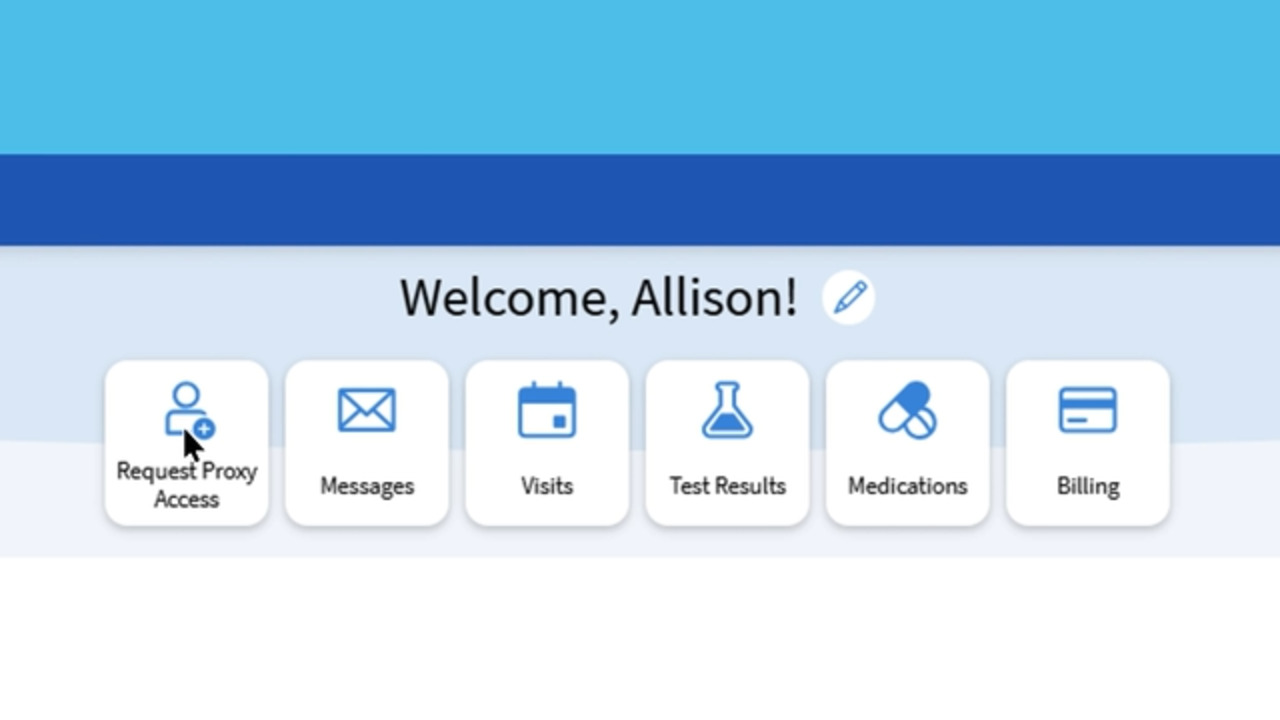
Proxy access allows you to securely view and manage your child’s health information in MyChart.
Here’s how to link your family’s MyChart accounts:
If you are the caregiver of a Children’s Mercy patient:
- Select “Request Proxy Access” from the top shortcut buttons or from the left menu.
- Complete the Request Proxy Access for MyChart form, upload a photo ID and provide your signature. If your child is 12 or older, you can choose whether to give them permission to have their own account once they turn 13.
- Children’s Mercy will verify your relationship to the patient. We will do this as quickly as we can. Thank you for your patience — verification keeps your child’s data safe!
- We will send you a notification when you’ve been verified. You’ll also see a notification when you log in to your MyChart account.
- Accept the proxy access. From your MyChart homepage, tap “Review access.” Enter your child’s date of birth and click “I accept...”
- Repeat for all patients you care for.
If you are a patient 18 or older:
- You can grant your caregiver proxy access if you choose to.
- Go to “Sharing Hub” from the left menu.
- Choose “Family member, close friend or caretaker” from the options, and then “Manage ongoing access to your account.”
- Tap “+ Invite friends or family” and fill out the form.
- Your caregiver will need to accept the emailed invitation and enter your date of birth to verify access.
You can message your care team right in MyChart:
- Important: First select the correct person’s profile at the top right of your MyChart homepage. You can only message your child’s care team members from your child’s profile.
- Choose Messages from the left menu or your shortcut buttons at the top.
- You can continue existing conversations or tap send a message to start a new one. Follow the prompts to select the kind of message you want to send.
To message a specific provider:
- Important: First select the correct person’s profile at the top right of your MyChart homepage. You can only message your child’s care team members from your child’s profile.
- A list of your child’s care team members can be found on the right side of your MyChart homepage, or by tapping View Care Team in the left menu.
- Tap Send message to message a specific provider or their team. Please note that not all providers can receive direct messages in MyChart.
Start with MyChart whenever you need medical records. Many records are available to download right away — just click the printer icon in the top right corner of the document.
If a record isn’t available to download, you can request it through the Request Medical Records form in the main menu. Most requests can be completed online, so there’s no need to schedule a visit to an office.
MyChart Central helps simplify your experience if you have a MyChart account at more than one hospital, clinic or other health care organization.
What is MyChart Central?
It’s a central hub that makes it easier to manage your information and care. With MyChart Central, you can:
- Use one login: Create an Epic ID to sign in across your MyChart accounts. (For privacy, each patient needs their own phone number and email.)
- Connect new accounts faster: When you join a new organization that uses MyChart, your existing information can carry over automatically.
- Keep information up to date: Changes you make in MyChart Central — like contact details — update across your linked accounts.
You may notice a slightly different sign-in experience. You might be asked to enter your MyChart username or Epic ID before entering your password.